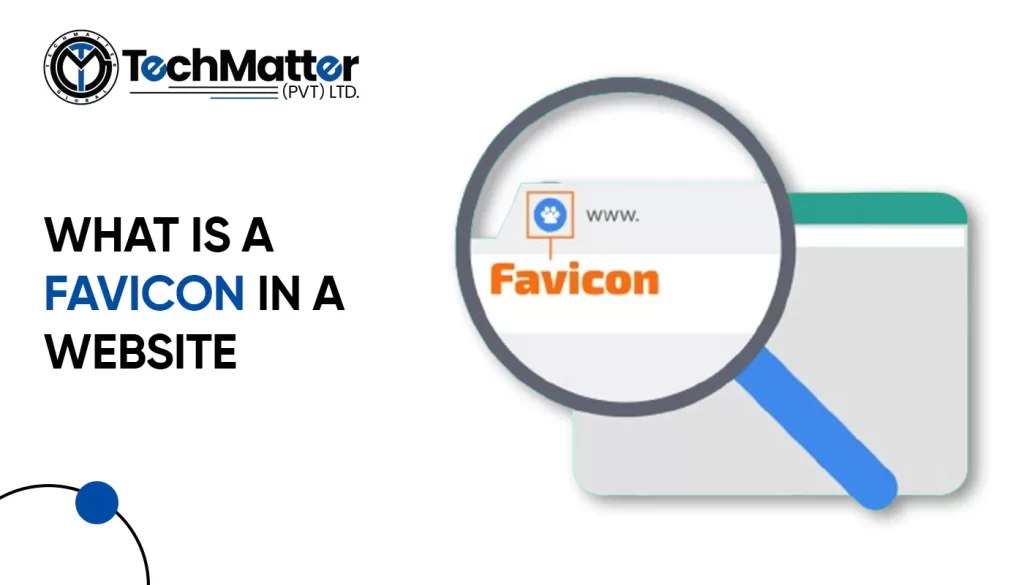
What is a Favicon in a website?

What is a Favicon in a website

What is a Favicon in a website?

Imagine scrolling through your internet tabs, looking for a specific site. Among all those tabs, one catches your eye because it has a small, unique symbol next to the title.

It’s called a favicon, and it’s a big deal for your website!

In this guide, we’ll walk you through the easy steps to upload a favicon to your website. We’ll keep it simple, no complicated jargon here!

So, let’s get started on making your website stand out with its own special little icon!

What is Favicon?

Your website may become a fantastic piece of art with a few simple steps. A browser icon, or favicon, must be understood first. Well, my dear readers, “favicon” is short for “favorite icon,” also commonly known as a browser icon.

It’s also frequently known as a bookmark, shortcut, or website icon. It acts as a visual representation of a website’s central idea, making it instantly recognized and ingrained in the brains of its visitors.

Does my website need a favicon?

Certainly! Adding a favicon to your website is a great idea! It might seem like a small detail, but it can make a big difference. Think of it as putting the cherry on top of your website sundae. With a favicon, your site looks more polished and professional.

It’s like giving your website its own special logo. Plus, it helps people recognize your site more easily when they have lots of tabs open in their web browser. So, if you want to make your website stand out and leave a good impression on visitors, adding a favicon is definitely worth considering!

How to create a favicon for your website?

Let’s get started on making an eye-catching and remarkable Favicon for your website with the help of the following steps.

  • Choose a design software or tool like Adobe Photoshop, Illustrator, GIMP, or a tool online.
  • Open the program and start a new square canvas.
  • Think about the size, usually 16×16 pixels or bigger for nicer screens.
  • Make your favicon to match your website’s style.
  • Keep it simple and easy to see.
  • Try it on different screens to make sure it looks good.
  • Save it as a PNG or ICO file and name it for browsers.
  • You can also make different sizes if you want, 16×16 to 32×32 pixels (Recommended)

A simple guide to adding a favicon to your website

How to add upload favicon in an HTML website?

  • Open your index.html file (or whichever page you want to add the favicon to).
  • In the <head> section of your HTML, add the following code:

<link rel="icon" type="image/x-icon" href="favicon.ico">

  • Replace favicon.ico with the actual filename and path of your favicon image, relative to the index.html file.
  • If you saved your favicon in a images folder, the code would look like this

<link rel="icon" type="image/x-icon" href="images/favicon.ico">

Manual Upload via FTP (advanced)

This method requires some technical knowledge and using an FTP client to access your website files. It’s not recommended for beginners, but here’s the basic process:

  • Use an FTP client to connect to your web hosting server.
  • Upload the .ico files to the root directory of your website (usually public_html or www).
  • Edit your theme’s header.php file and insert the following code, replacing favicon.ico with your filename:

<link rel="shortcut icon" href="/favicon.ico" type="image/x-icon">

How to add upload favicon in a WordPress website?

This is the simplest and most recommended method for most users. Here’s how to do it:

  • Go to your WordPress dashboard.
  • Click on Appearance > Customize.
  • Under the Site Identity section, click on Select site icon.
  • You can either upload a new image from your computer or choose one from your existing Media Library.
  • Remember, the image should be square and at least 512×512 pixels for best results.
  • Click Crop to adjust the image selection and then Save & Publish.

How to add upload favicon in a Squarespace website?

  1. Log in to your Squarespace account.
  2. Navigate to the Design panel. You can find it in the left-hand menu in Squarespace 7.0 and newer versions, or under “Settings” in Squarespace 7.1.
  3. Scroll down to the “Browser Icon” section. This might be labelled as “Favicon” in older versions.
  4. Upload your favicon image. You have two options:
    • Drag and drop the image directly into the upload box.
    • Click the “Upload” button and select your image file from your computer.
  5. Click “Save.”

How to add upload favicon in a Shopify website?

  1. Go to your Shopify Admin Panel: Log in to your Shopify account and access the admin panel.
  2. Navigate to Themes: Click on “Online Store” in the left sidebar, then select “Themes”.
  3. Find your theme: Choose the theme you want to edit and click “Customize”.
  4. Access Theme Settings: In the theme editor, find the “Theme settings” tab and click on it.
  5. Locate the Favicon option: Depending on your theme, the favicon settings might be under different sections. Look for options like “Logo”, “Favicon”, or “Appearance”.
  6. Upload your favicon: Click on “Select image” or similar and choose your prepared favicon image from your computer.
  7. Save your changes: Click “Save” to update your theme with the new favicon.

How to add upload favicon in a Webflow website?

  • Go to your Webflow project settings.
  • Click on the “General” tab.
  • Scroll down to the “Icons” section.
  • You’ll see two upload fields: one for the “Favicon” and one for the “Touch Icon.”
  • Click the “Publish” button in the top right corner.
Test and verify

The most effective and smooth browsing experience is essential. Check your site’s favicon on various browsers and mobile devices. The browser cache can be deleted if required.

Kudos! Your website now has a personalized favicon that you designed and published. It will now be displayed in the browser tabs of site visitors, increasing brand awareness and familiarity among users.

Major Do’s and Don’ts While Creating a Favicon for Your Website

Let us understand the major do’s and don’ts for creating an appealing browser icon.

  • To maintain clarity and visual appeal, stick to a restricted color pallet.
  • Make sure it accurately reflects the website’s brand or purpose.
  • Test the icon on all platforms and devices to ensure it is visible.
  • Avoid patterns that are expanded or challenging to understand.
  • To prevent confusion, don’t design it too similar to other browser icons already on the marketplace.
  • Avoid relying only on popular aspects because they could go out of style rapidly.

Summary

We have explored the fascinating world of browser icons and their enormous potential to make your website stand out in this thorough guide. You should know exactly what a browser icon is and how it may improve your online platform’s visibility and recognizability.


Best Software Development Companies in New York Guide to Medical Software Development Top Software Development Companies in Texas Team Software Process (TSP)

Share Your Goals with Our Technical Experts

Schedule a consultation to align your clinical vision with our expert engineering and scalable IT architecture. Let’s collaborate to build high-performance digital solutions that drive your practice forward.

homeSectionImg10
Scroll Down