
Have you ever noticed an option called SVM Mode in your BIOS and wondered what it does? If you use virtual machines, test software, or manage IT environments, this setting can turn your computer into a more powerful and secure tool.
In this guide, you’ll learn what SVM mode is, why it matters, and how to enable it. By the end, you’ll not only understand the technology but also know whether activating it is the right choice for your system.
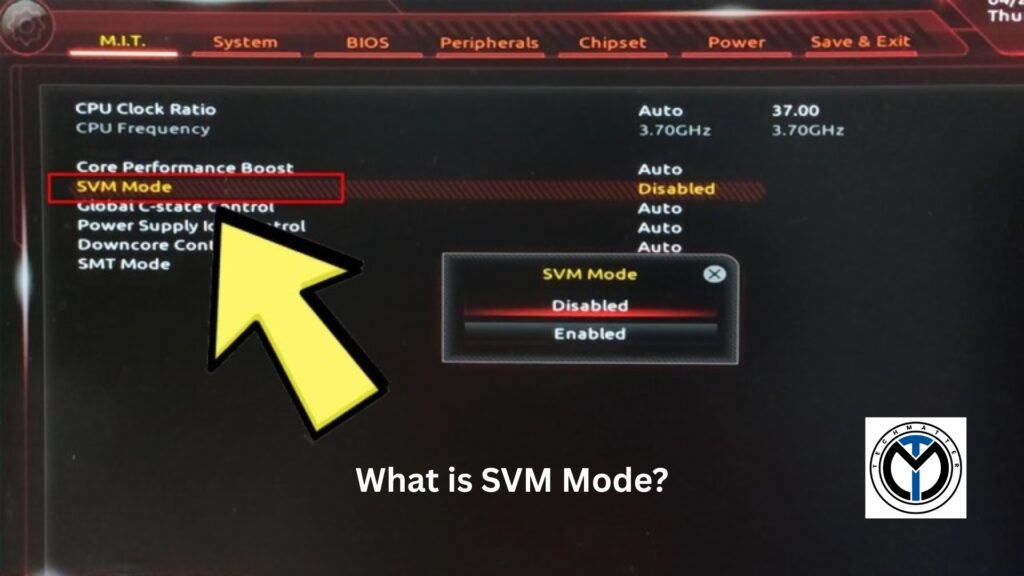
SVM stands for Secure Virtual Machine mode and is part of AMD’s hardware-assisted virtualization technology known as AMD-V. When you enable it in the BIOS, your system can run multiple operating systems or applications inside virtual machines in a more efficient and secure way.
If your computer uses an Intel processor, you will find a similar option called Intel VT-x. Both technologies serve the same purpose by making virtualization faster, safer, and more reliable. They achieve this by shifting the heavy work of virtualization from software to the CPU hardware.
Virtualization is the technology that allows a single physical machine to run multiple independent environments called virtual machines (VMs). Each VM works like its own computer with its own operating system and applications.
This capability is now central to modern computing because it:
Turning on SVM mode is more than a small technical adjustment. It provides clear advantages for professionals, businesses, and even hobby users.
With SVM enabled, the CPU takes on virtualization tasks directly. This leads to smoother performance, lower overhead, and the ability to run multiple virtual machines without noticeable slowdown.
SVM helps protect the host system by isolating virtual machines at the hardware level. This makes it much harder for malware to break out of a virtual environment. For cybersecurity teams testing threats or IT administrators managing servers, this extra layer of protection is critical.
Virtual machines that run without hardware support often face conflicts or crashes. Enabling SVM makes resource allocation more efficient, which results in a more stable and reliable experience.
SVM also supports running a virtual machine inside another virtual machine. This is especially useful for developers, trainers, and researchers who need to build complex test environments with multiple layers.
The process to enable SVM mode is easy to follow, but it varies depending on your motherboard brand. Here’s the step-by-step guide:
Once enabled, you may want to confirm that virtualization is active:
Most modern systems support SVM mode, but you may encounter problems when enabling or using it. The sections below describe common issues and provide step-by-step solutions.
SVM mode is not limited to IT professionals. It can be useful in many different areas of work and personal computing.
Yes, enabling SVM mode is safe. It does not harm your computer or reduce performance in everyday tasks like gaming, browsing, or office work. The setting only becomes active when you use virtualization software such as VirtualBox, VMware, or Hyper-V.
Most modern processors are designed with this feature in mind, so it is recommended to keep it enabled if you work with virtual machines. If you never use virtualization, leaving it off is fine too.
If you use virtual machines, manage IT systems, or simply want to explore the possibilities of virtualization, enabling SVM mode in BIOS is highly recommended. It allows your system to perform better, remain more secure, and stay stable even when running multiple environments. You also gain access to advanced options such as nested virtualization, which is especially valuable for developers and IT professionals.
For businesses, turning on SVM mode means more efficient management of servers and infrastructure. For individual users, it offers the freedom to experiment, learn, and run different operating systems without needing separate hardware.
No, gaming performance remains unchanged unless you’re actively running virtual machines.
No, Hyper-V is Microsoft’s virtualization software, while SVM is the CPU feature that makes Hyper-V (and others) run efficiently.
No, Intel uses VT-x, which works the same way.
Rarely, issues usually come from outdated drivers or low resources.
No, it offers no benefit if you never run VMs.


IT Solutions and Managed Services Provider specializing in developing custom solutions.
 +1 (781) 667-5321
(021) 37447307
+1 (781) 667-5321
(021) 37447307
 info@techmatter.co
 100 N Brand Blvd Suite 522, Glendale, CA 91203, USA